Storage Web Interface
The Oceanum Storage web interface provides an easy way to browse, upload, and manage your files without any technical setup.
Accessing the UI
Navigate to https://ui.storage.oceanum.io and sign in with your Oceanum.io account.
Features
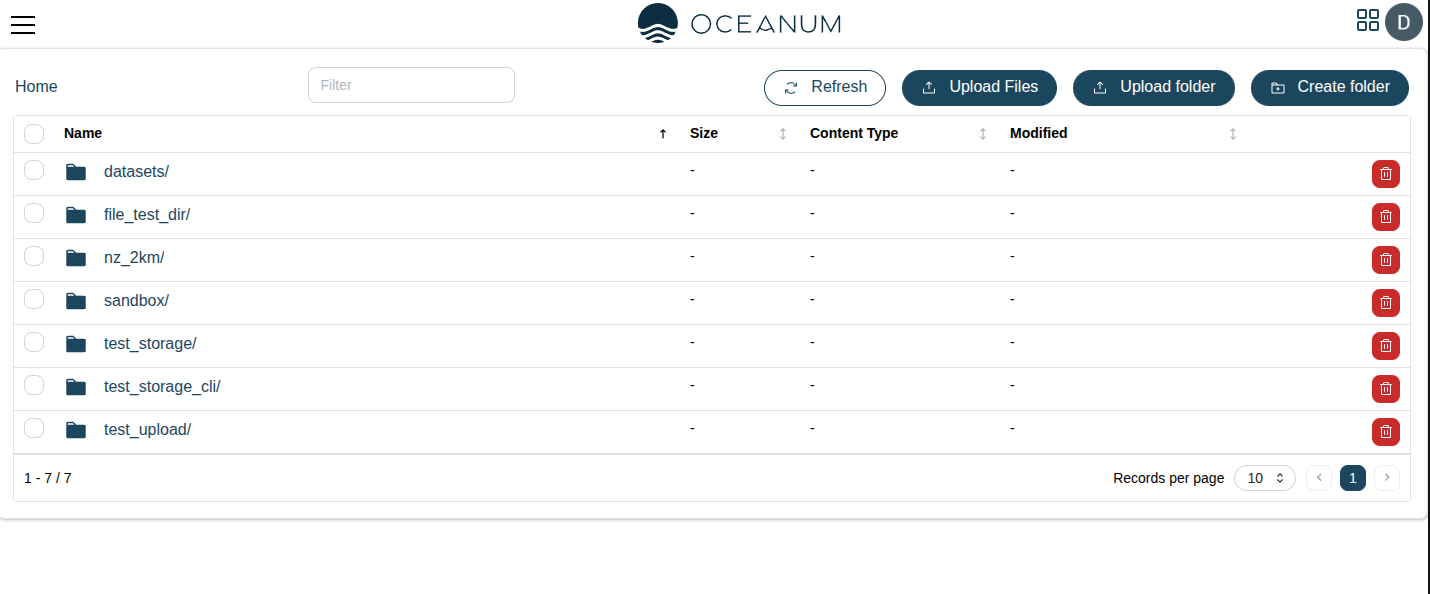
File Browser
The file browser displays your storage contents in a familiar folder structure:
- Navigate - Click folders to explore your directory structure
- Breadcrumbs - Use the path bar to quickly jump to parent directories
- Search - Filter files by name within the current directory
Uploading Files
To upload files:
- Navigate to the destination folder
- Click the Upload button or drag and drop files onto the browser
- Monitor upload progress in the status panel
- Files are available immediately after upload completes
You can upload multiple files at once, and folder structures are preserved when dragging folders.
File Operations
Right-click on a file or folder to access operations:
- Download - Download files to your local machine
- Rename - Change file or folder names
- Move - Move items to a different location
- Copy - Create a copy in another location
- Delete - Remove files or folders (this action cannot be undone)
- Share - Generate shareable links
Creating Folders
Click the New Folder button to create a new folder in the current directory. Folder names should not contain special characters.
File Details
Click on a file to view its details:
- File size
- Last modified date
- Content type
- Direct URL for access
Storage Quotas
Your storage quota depends on your Oceanum.io subscription plan. The UI displays your current usage and remaining quota in the sidebar.