

Choose a location
Every analysis starts from a single point. Open the app and the Location step is active in the sidebar, with the configuration panel on the right.
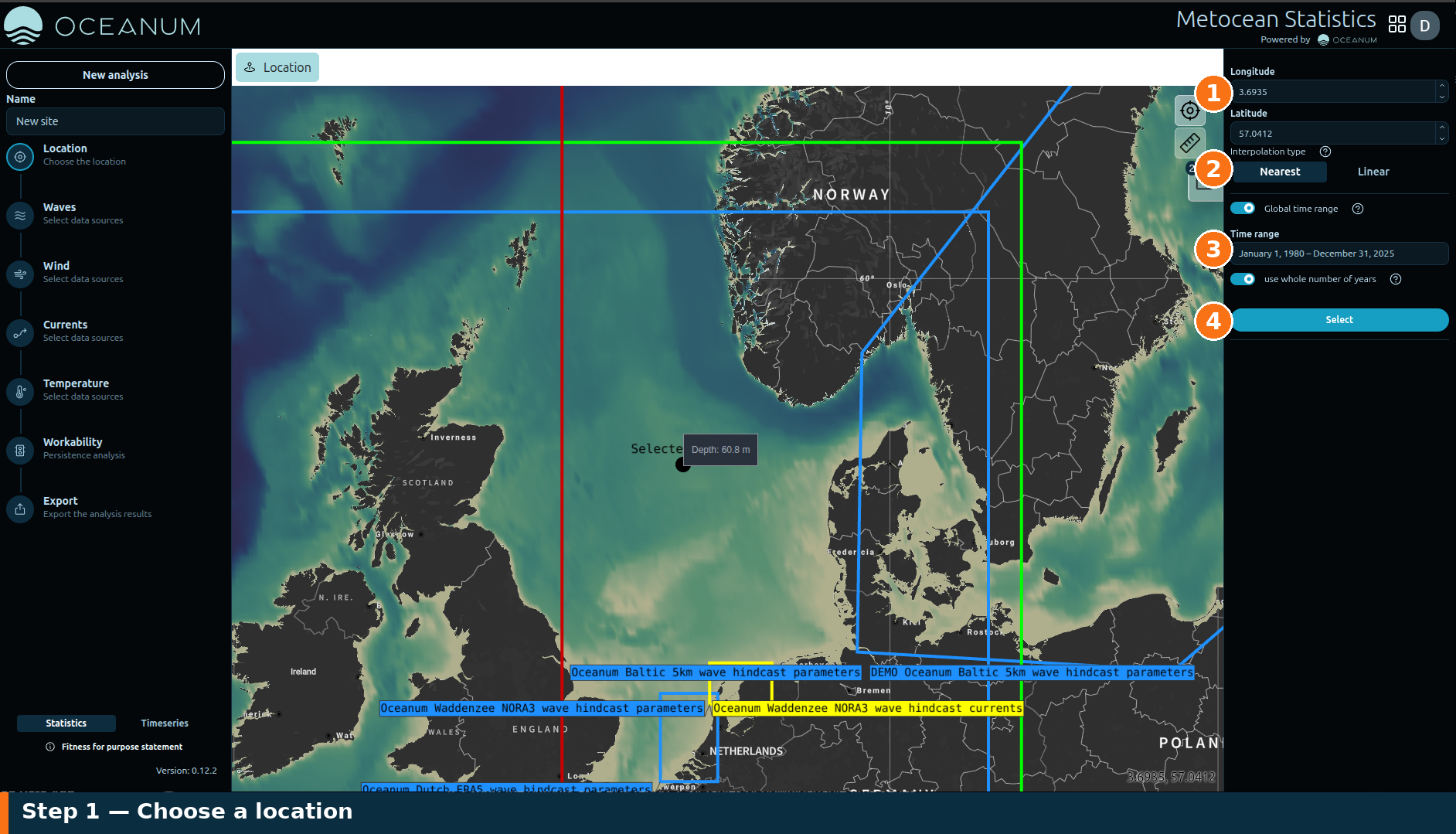
The location panel, top to bottom: 1 coordinates, 2 interpolation type, 3 time range, 4 Select — each covered in the steps below.
1. Set the point
Section titled “1. Set the point”Pick the analysis location in either of two ways:
- Type coordinates — enter the Longitude and Latitude in the panel on the right. The current cursor position is shown in the bottom-right corner of the map to help you.
- Click the map — pan and zoom to your area of interest and click to drop the point. Use the locate control (the crosshair, top-right of the map) to jump to your current position, or the ruler control to measure distances.
2. Choose the interpolation
Section titled “2. Choose the interpolation”The gridded datasets rarely have a node exactly on your point, so choose how the app samples them:
- Nearest — uses the closest grid node. Fast and faithful to the source model.
- Linear — interpolates between surrounding nodes for a smoother value between grid points.
Use Nearest unless you have a specific reason to interpolate.
3. Set the time range
Section titled “3. Set the time range”The Global time range toggle applies one analysis period to every variable. With it on, set the Time range (the default spans the full reanalysis era) and the same window is reused for waves, wind, currents and temperature.
Leave use whole number of years enabled so that statistics are computed over complete years — this avoids seasonal bias from a partial first or last year.
Each variable also has its own available period (for example, the global wave hindcast starts in 1979 and wind in 1940), so the effective window is the overlap of your selection and the dataset’s coverage. See Data sources and variables for the coverage of each dataset.
4. Select
Section titled “4. Select”Click Select. The point is fixed on the map as the Selected point, the Location step gains a green tick, and the app moves straight to the Waves step.
To start over at a different site, use New analysis at the top of the sidebar, or change the coordinates and select again.